FIRMWARE UPDATER TOOL FOR WIDEX ACCESSORIES

Keep Widex accessories up to date with the latest firmware to ensure optimal performance, reliability, and compatibility.

The Firmware Updater Tool is a Windows application that enables firmware updates for supported Widex accessories. Firmware updates help hearing care professionals and their clients get the best possible experience from Widex products.

After launch, improvements related to quality, performance, or compatibility may be identified. Updating accessory firmware can help resolve issues that cannot be addressed through hearing aid firmware updates alone and may, in some cases, provide a faster solution without requiring a hearing aid software release.

To ensure users can benefit from these improvements, the Firmware Updater Tool provides a simple and reliable way to update supported USB-connected Widex accessories using a Windows 10 or Windows 11 PC.
Installation Guide

Download the Firmware Updater Tool

Download the Firmware Updater Tool using the link below.

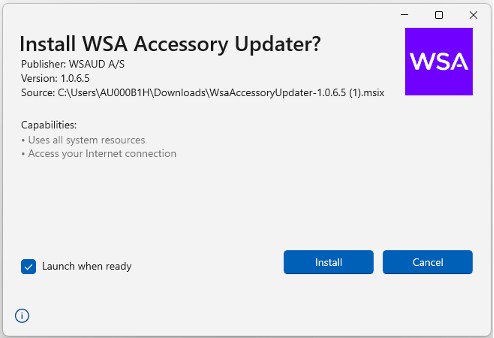
After selecting the link, the installer will either launch automatically or be downloaded to your computer, depending on your browser settings.

Download Firmware Updater Tool

Click Install to begin the installation process.

Once the installation is complete, the Firmware Updater Tool will open and be ready to use.

Update an Accessory

Step 1: Select the accessory

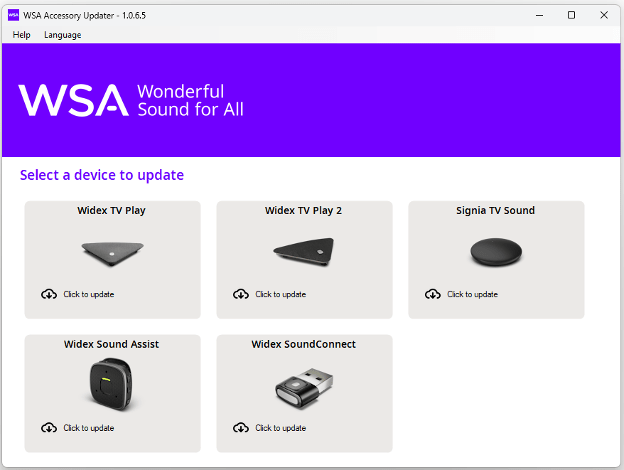
From the home screen, select the accessory you would like to update.
In the example below, TV PLAY 2 has been selected.

Step 2: Connect the accessory

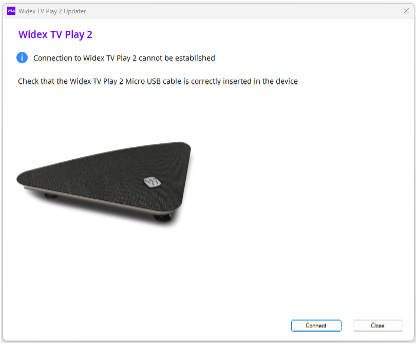
Connect the accessory to your PC using a USB cable and click Connect.
If the accessory is not connected, you will see the connection screen shown below.

Step 3: Update the firmware

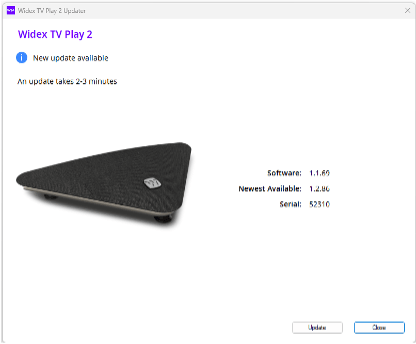
Once the accessory has been detected, click Update to install the latest available firmware.

Step 4: Complete the update

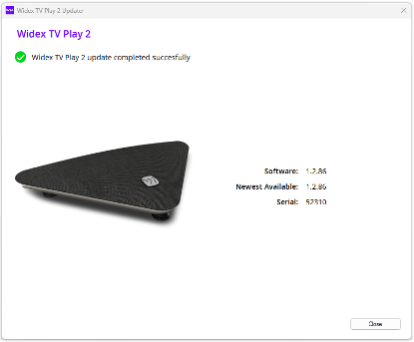
When the update has finished successfully, a confirmation message will be displayed.
The accessory is now updated and ready to use. You may close the application.
If you need to update additional accessories, simply connect the next device, select it within the Firmware Updater Tool, and follow the same process.

Go to the top